Step 1
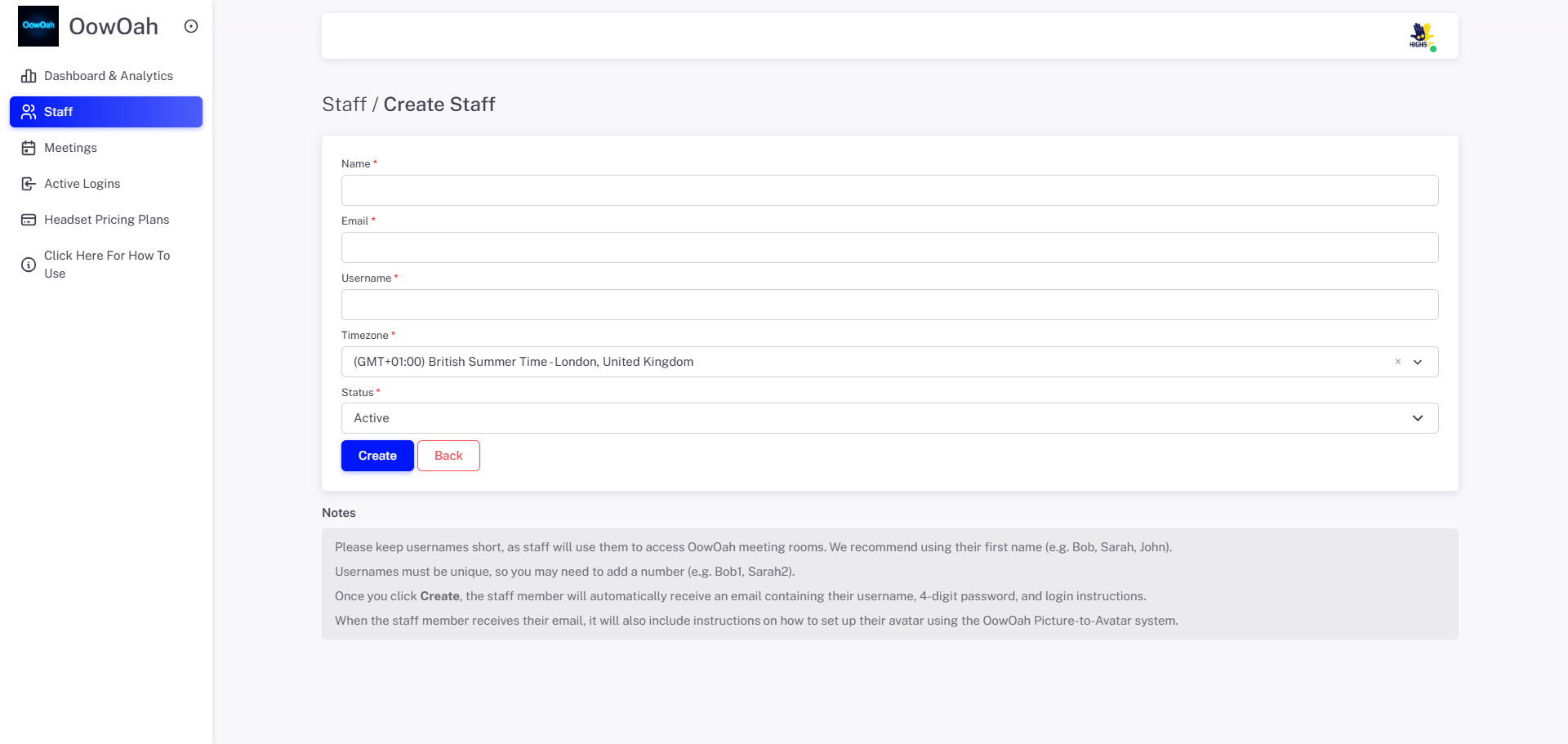
Staff Setup
- Click Add Staff.
- Enter the staff member's details.
- Choose a short, unique username.
- Click Create.
- The staff member will automatically receive an email with their login details (username and a 4 digit password).
- The email will also include avatar setup instructions.
Step 2
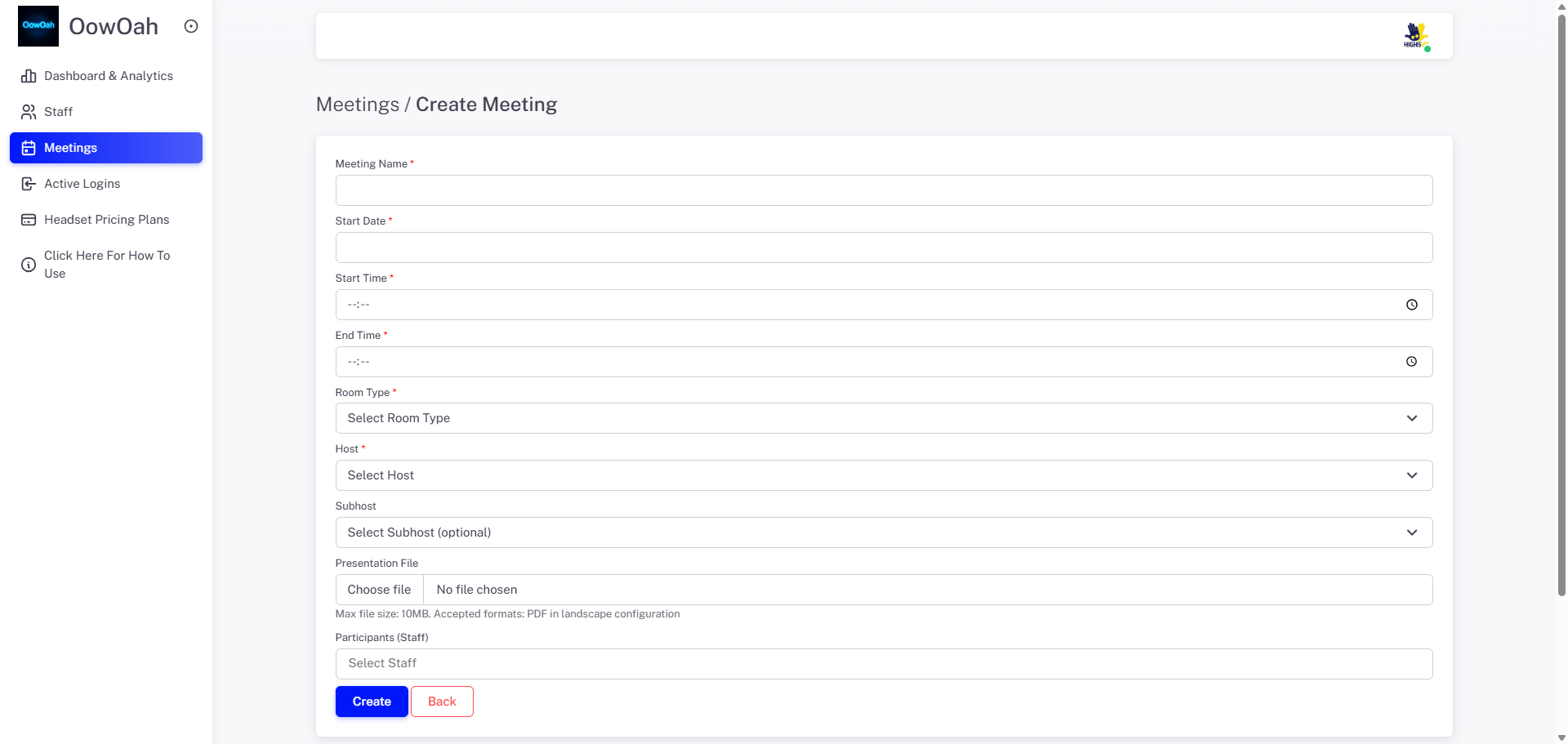
Meeting Setup
- Click Add Meeting.
- Enter the meeting name, date, and time.
- Select a Host and, if required, a Sub Host.
- Upload a presentation if required (need to be a PDF in landscape and less than 10 MB.
- Only the Host and Sub Host can access presentations and use the Quantum Leap feature.
- Add the staff members you wish to invite.
- Click Create.
- Each Invited member of staff will automatically receive an email with the meeting details and joining instructions
Step 3
Headset Setup
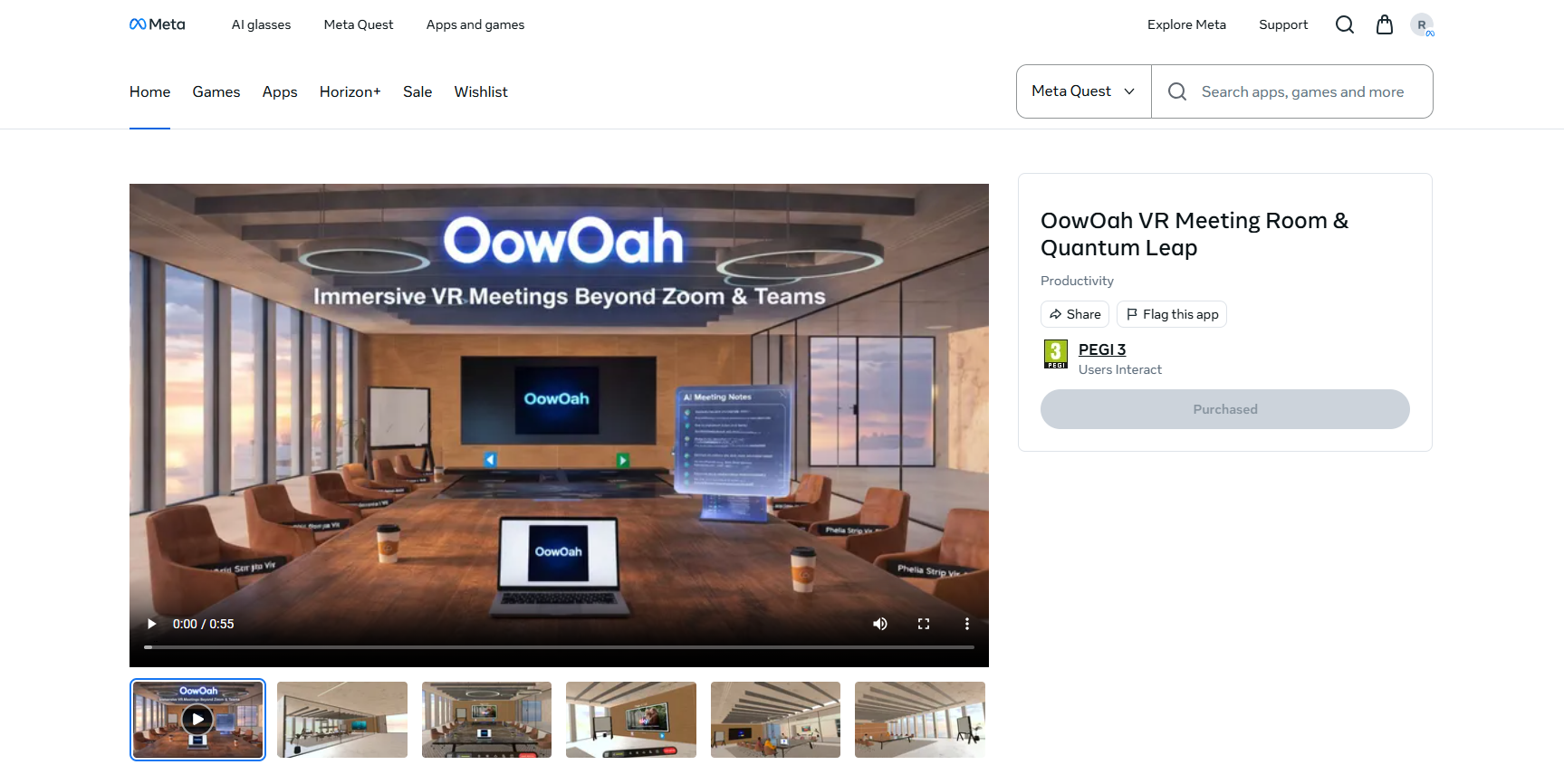
- Open the Meta Quest Store on each headset.
- Search for OowOah.
- Click Download and install the app.
- Repeat this process for all headsets that will be used for OowOah meetings.
Step 4
Joining a Meeting
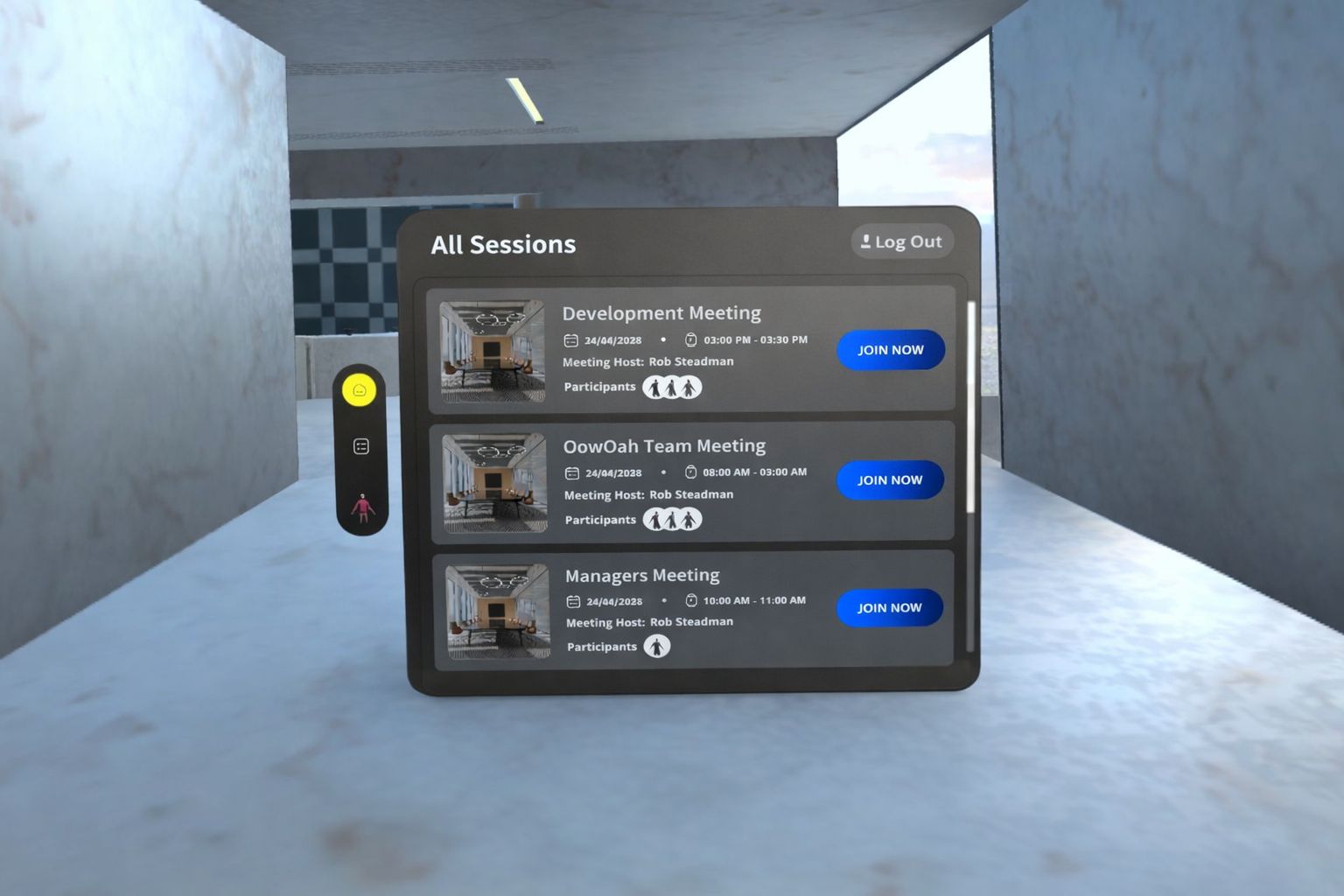
- Open the OowOah app on your Meta Quest headset.
- Enter your username and password to log in.
- You will be taken to the OowOah dashboard.
- Click on your meeting from the list of available meetings.
- Click Join Now to enter the VR meeting room.
Step 5
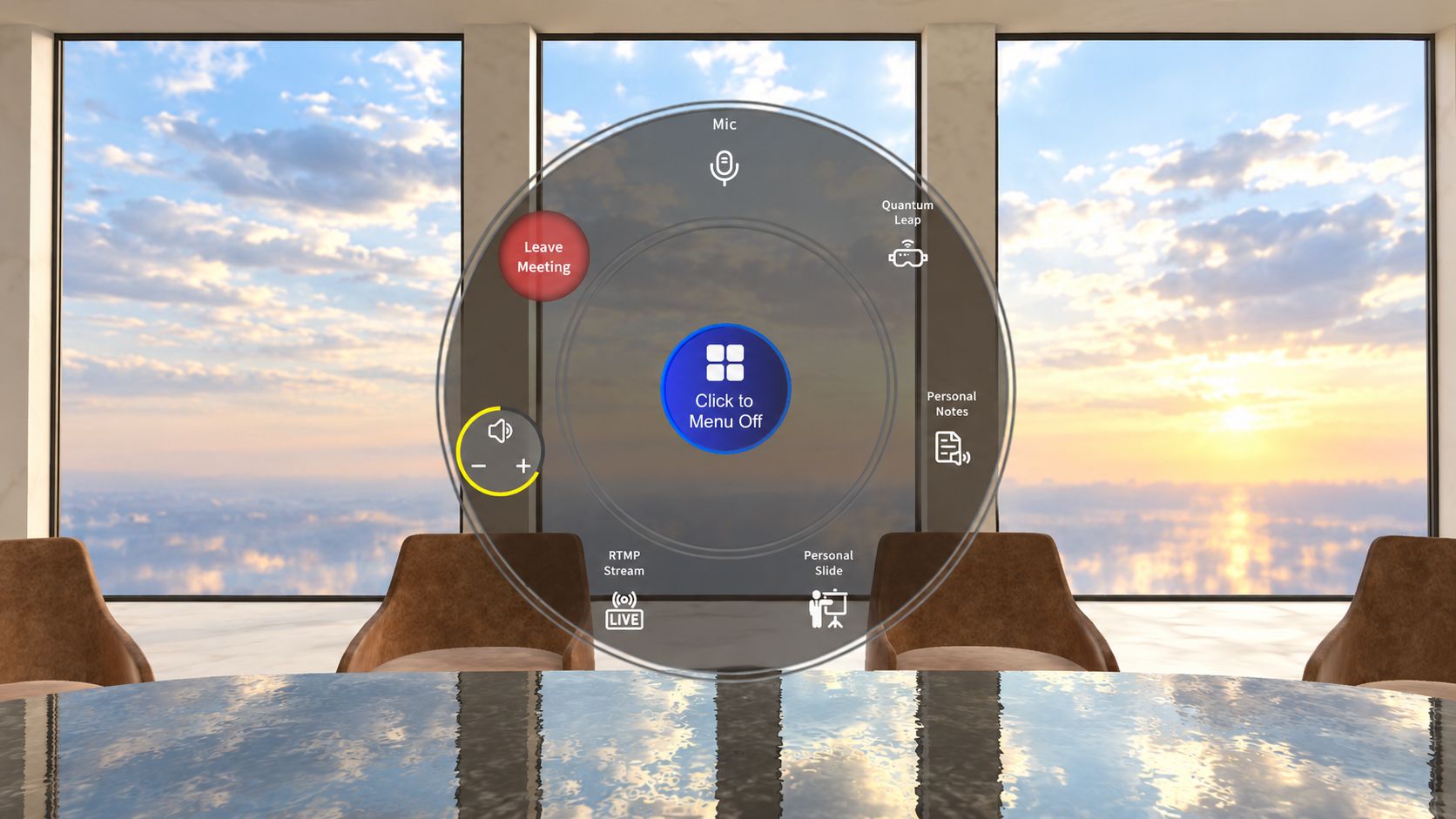
OowOah Quick Controls Guide - When you log in to the headset you can click to watch a video on how to use the controller.
• You will see the controls on your left hand, use the right controller to access the menu
• Use the thumb stick to move around the meeting room.
• Click the personal notes, to dictate your own meeting notes. When you are talking for your personal notes, you mike in muted.
• To speak with other participants, simply talk normally.
• When finished, use the blue menu button to access additional options and leave the meeting.
How to use
- Click here to find the app in the MetaQuest Store
- Watch this video on how to use the admin panel : CLICK HERE
- Watch this video on how to use the controllers: CLICK HERE
- Watch this video on how to use the control panel in the VR meeting: CLICK HERE
Headset Spaces Explained.
OowOah is designed to be simple, flexible, and scalable. You can add unlimited users to your organisation — your whole team, clients, and guests can all have accounts. You are not charged per user. Instead, OowOah works on Headset Spaces. A Headset Space represents one person inside a VR meeting at any given time.
Please note you buy the headsets separately you need the Meta Quest 3 or 3s and you can buy them from Meta or any high street retailer at a better price (Argos, Amazon etc).
Example: 10 Headset Spaces
If your organisation has 10 Headset Spaces, this means:
- Up to 10 people can be inside the VR meetings at the same time
- You can run multiple meetings simultaneously
- The total number of people across all meetings cannot exceed 10 at once
For example:
- Meeting 1: 6 people
- Meeting 2: 4 people
- ✔ This works (total = 10)
But:
- Meeting 1: 8 people
- Meeting 2: 5 people
- ✖ This will not work (total = 13, exceeds your 10 Headset Spaces)
- All you need to do is scale up anytime as your business grows
Simply put, Headset Spaces control how many people can be inside OowOah VR meetings at the same time — not how many people you can invite or add.
For additional help, please email rob@high5vr.com or call +44 (0) 20 8064 2749